Prometheus Integration
Flower exports several celery worker and task metrics in Prometheus format.
The /metrics endpoint is available as soon as Flower is running.
By default on your local machine Flower’s metrics are available at: localhost:5555/metrics.
Read on for configuration details and the list of available metrics.
For a complete walkthrough of Celery, Flower, Prometheus and Grafana, see the Grafana Integration Guide.
Configure Prometheus to scrape Flower metrics
To integrate with Prometheus you have to add Flower as a target in the Prometheus configuration.
In this example we are assuming your Flower and Prometheus are installed on your local machine
with their defaults and available at localhost:<port number>.
To add Flower’s metrics to Prometheus open its config file prometheus.yml, which initially
looks like this:
global:
  scrape_interval:     15s
  evaluation_interval: 15s

scrape_configs:
  - job_name: prometheus
    static_configs:
      - targets: ['localhost:9090']
and alter the scrape_configs definition to be:
scrape_configs:
  - job_name: prometheus
    static_configs:
      - targets: ['localhost:9090']
  - job_name: flower
    static_configs:
      - targets: ['localhost:5555']
You can also just point Prometheus at the example prometheus.yml file in the root of the Flower repository
when you start it from the command line (note that flower must resolve to localhost, for example through /etc/hosts):
./prometheus --config.file=prometheus.yml
Available Metrics
The table below lists the Prometheus metrics exposed by Flower.
Name |
Description |
Labels |
Instrument Type |
|---|---|---|---|
flower_events_total |
Number of times a celery task event was registered by Flower. |
task, type, worker |
counter |
flower_task_prefetch_time_seconds |
The time the task spent waiting at the celery worker to be executed. |
task, worker |
gauge |
flower_worker_prefetched_tasks |
Number of tasks of given type prefetched at a worker. |
task, worker |
gauge |
flower_task_runtime_seconds |
The time it took to run the task. |
task, worker |
histogram |
flower_worker_online |
Shows celery worker’s online status. |
worker |
gauge |
flower_worker_number_of_currently_executing_tasks |
Number of tasks currently executing at this worker. |
worker |
gauge |
Using Metric Labels
You can filter the data in Prometheus using PromQL to show only selected labels. The following labels are available:
task - task name, e.g.
tasks.add,tasks.multiply.type - task event type, e.g.
task-started,task-succeeded. Note that worker related events will not be counted. For more info on task event types see: task events in celery.worker - celery worker name, e.g.
celery@<your computer name>.
Example Prometheus Alerts
See the example Prometheus alerts.
Add the rules to your alertmanager.yml config as in the alert manager’s documentation.
Example Grafana Dashboard
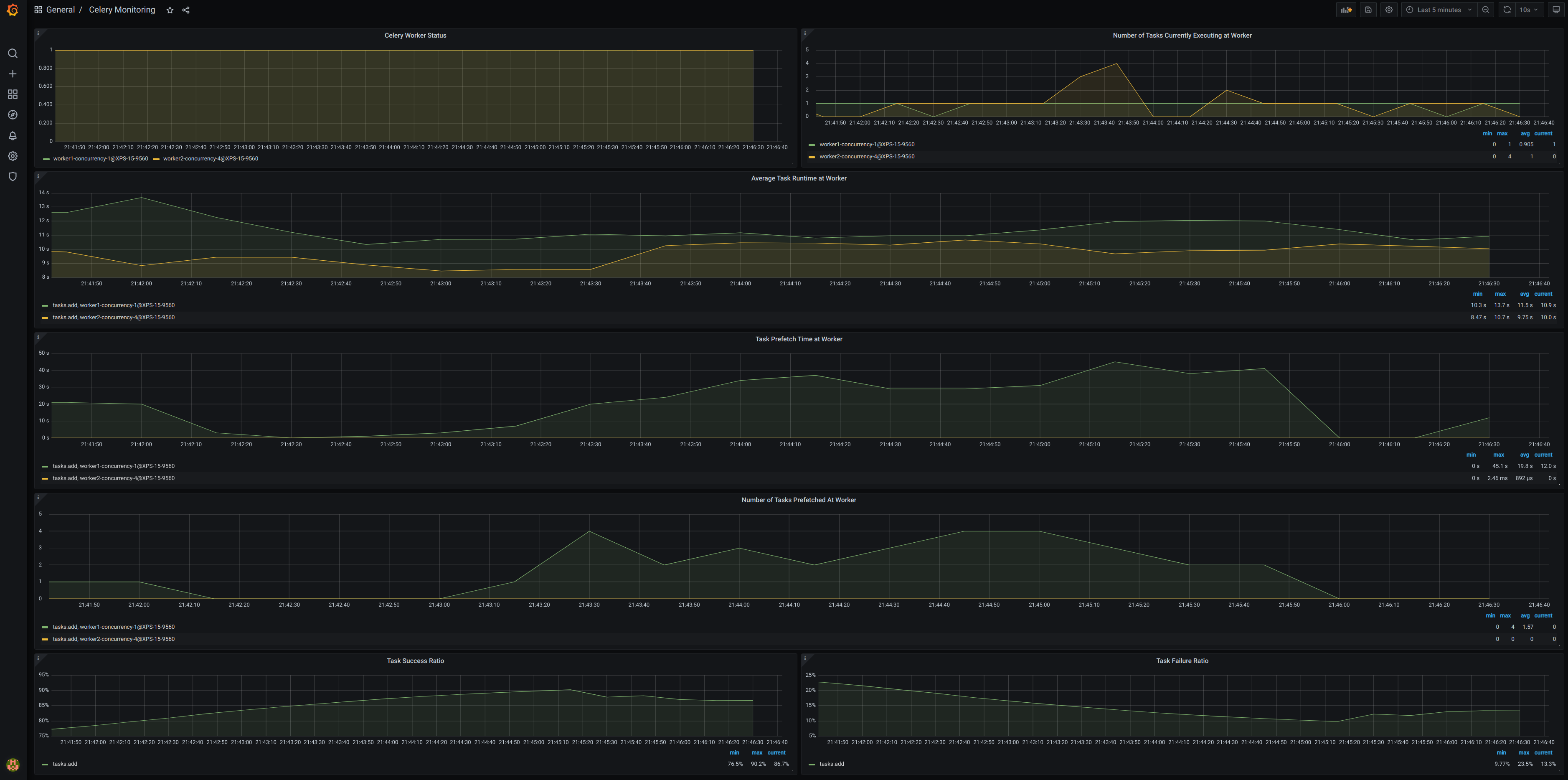
See the example Grafana dashboard. The Grafana Integration Guide below shows how to import it. The dashboard is a good starting point for monitoring your Celery cluster.
Grafana Integration Guide
The quickest way to see the whole stack working is the docker-compose.yml file in the root of the Flower repository. It starts Redis, a Celery worker, Flower, Prometheus and Grafana. Prometheus is configured to scrape Flower, and Grafana is provisioned with the Prometheus data source and the Celery monitoring dashboard, so nothing has to be set up by hand.
Start the stack
From a checkout of the repository run:
docker compose up --build
Once the containers are up, the services are available at:
Flower at http://localhost:5555
Prometheus at http://localhost:9090
Grafana at http://localhost:3000
Submit a few tasks so there is something to look at:
curl -X POST -d '{"args":[1,2]}' http://localhost:5555/api/task/async-apply/tasks.add
Check Prometheus
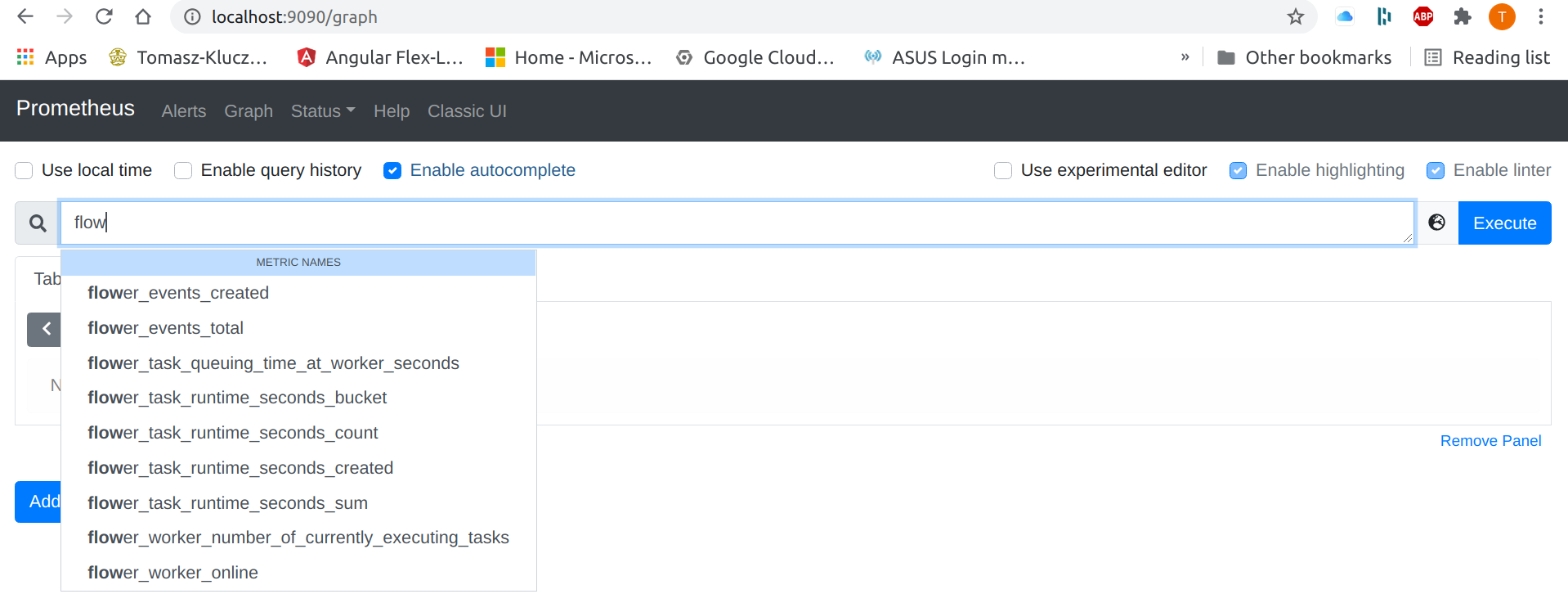
Open http://localhost:9090, go to the Graph tab and start typing flower. The autocomplete lists all metrics exported by Flower.
Open the dashboard in Grafana
Open http://localhost:3000. Anonymous access is enabled and the Celery monitoring dashboard is the home page, so no login is needed.
Import the dashboard into an existing Grafana
If you already run Prometheus and Grafana, add Flower as a scrape target as described in Configure Prometheus to scrape Flower metrics and add Prometheus as a data source in Grafana following the Grafana data source documentation. Then import the dashboard.
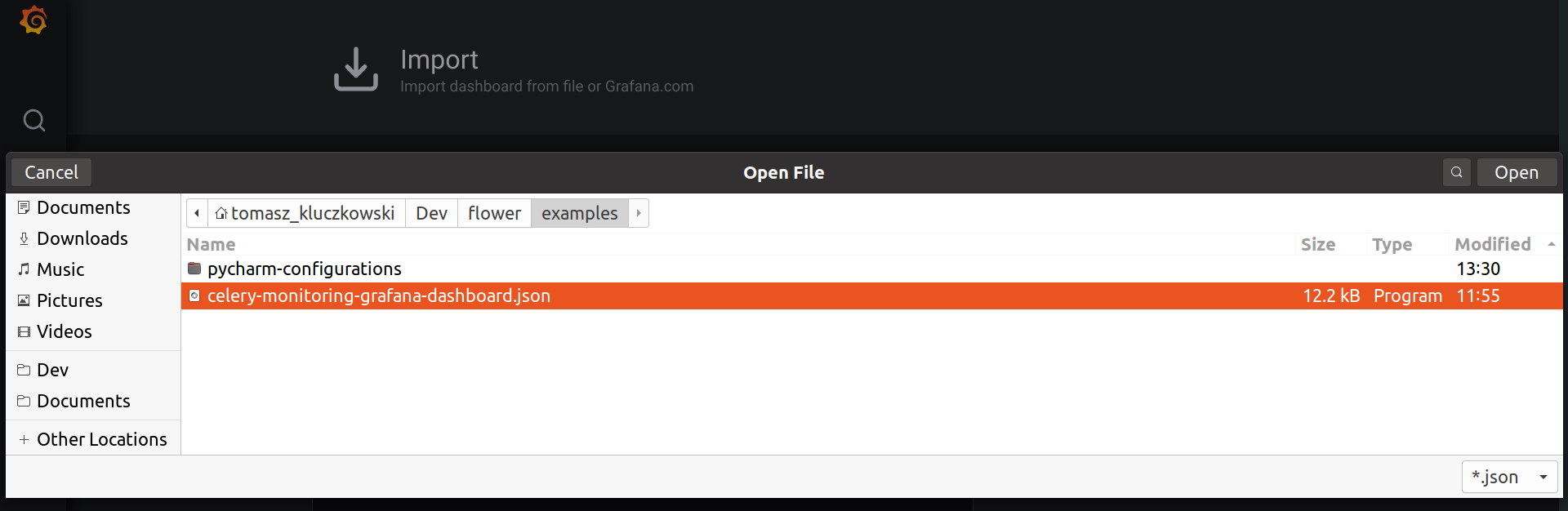
Download the Grafana dashboard JSON file.
Hover over the + icon in the left side-bar and click Import.

Click Upload JSON file and select the celery-monitoring-grafana-dashboard.json file.
Select your Prometheus data source in the Prometheus field and click Import.
